
Custom report
Choose your own breakdown.
Pick the data source, columns and filters. Download CSV and save the report.
When ready-made reports are not enough, you choose your own breakdown.
Section 08 · Reports and connections
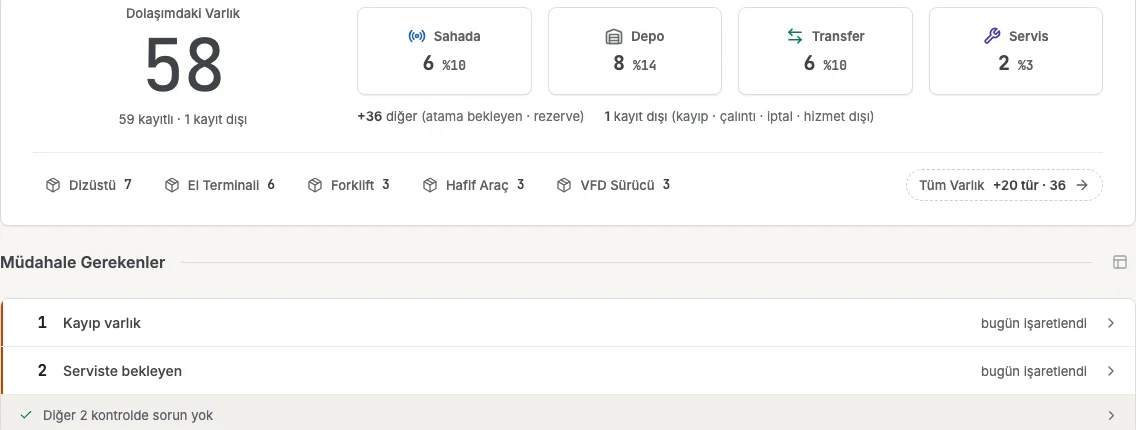
The Command Center puts what needs action on top. Each report answers one management question.

A manager's day
Illustrative model
Command Center
SLA breaches, pending approvals, overdue maintenance and critical stock are counted in one queue. Everyone sees the same layout; sections you cannot use stay hidden.
ExampleA manager opens the Command Center in the morning. Overdue jobs, pending approvals and critical stock are at the top.
Management summary
Inventory distribution, life cycle, data quality, approval performance and risk signals. Filters stay in the address and can be shared by link.
ExampleThey see the organization's inventory breakdown and approval performance on one page, and share the filtered view by link.
Report catalog
Maintenance, stock, compliance, data protection, SLA, procurement, cost, working time. Every report has an answer sentence, a chart and a method note.
ExampleFinance opens the maintenance cost report. The question it answers sits above it, the method note below.
Search
Jump to pages; search assets, work orders, requests and users. A record you cannot see does not appear in search either.
ExampleA user typing “PMP26” in the search box finds only the pump and its jobs that they are allowed to see.
Notification
For a user and an event, it says whether the notification will go out and, if not, the first obstacle in one sentence.
ExampleA technician was assigned a job but never heard. The manager asks; the system gives the reason in one sentence: the user has turned notifications off.
Connections
The documented external API reads assets and work orders and opens work orders. Webhooks notify the external system when an event occurs. Incoming data first lands in a staging area. There is no ready-made connector for any specific ERP product; the bridge is built over generic HTTP/JSON, REST and CSV.
Highlights
Custom report
Pick the data source, columns and filters. Download CSV and save the report.
When ready-made reports are not enough, you choose your own breakdown.
Exports
Full inventory, assigned assets, assets in service. Previewed and shared by link.
Frequently asked lists are ready; you preview them, take a CSV and share by link.
External API
Documented with OpenAPI. Versioned address, paged reads and a key that prevents repeats.
Other systems read data from VAYOM with a key and can open work orders.
Webhook
Signed request, delivery log and retry with growing intervals.
When an event happens, a signed request goes to the outside system; if it does not arrive, it is retried.
Integration center
Status, last successful run, pending and failed jobs. What each connector does and does not do is written out.
You see which connection works and which is stuck in one table.
Full scope
Tap an item to see what it does, its details and any limits. Items with a dashed border currently work under specific conditions.
Who it's for
“The organization's pulse.”
The Command Center shows what needs action. The management summary gathers inventory, approval performance and risks on one page.
Frequently asked questions
No. Users and groups are read from Active Directory, LDAP or Entra ID; an admin reviews each record and opens the account. With SCIM 2.0, your identity provider opens, updates and deactivates accounts by itself.
The web app and the field app work in Turkish, English and German. The language comes from the user's choice first, otherwise from the organization's. Notification and email texts are Turkish only for now.
The help center has search, how-to guides by topic, page guides and frequently asked questions, ready in every organization. The organization writes its own procedures in the Organization Guide; anything unresolved goes to a messaging support request.
An external API documented with OpenAPI reads assets and work orders and opens work orders. There are outgoing and incoming webhooks and an ERP bridge over REST and CSV. Incoming data lands in a staging area first; the decision stays with a person.
There is no ready-made connector for SAP, Maximo or any other ERP product. Data moves through files (CSV/XML), the REST API and signed webhooks; a generic HTTP/JSON bridge is configured per organization, and SOAP is not supported. The XML files use SAP and Maximo field names; this is a file exchange, not a live connection.

Let's work out together the scope for transferring your existing data and the connections you need. Tell us in the call which process you want to see; we'll plan the walkthrough around that workflow.
Request a discovery call